If you want pc gaming basics that actually change how games feel, start with two goals: steady frame pacing and clean input feel. Many new PC players chase “max graphics” and end up with stutter, tearing, noisy fans, and a game that feels worse than it looks.
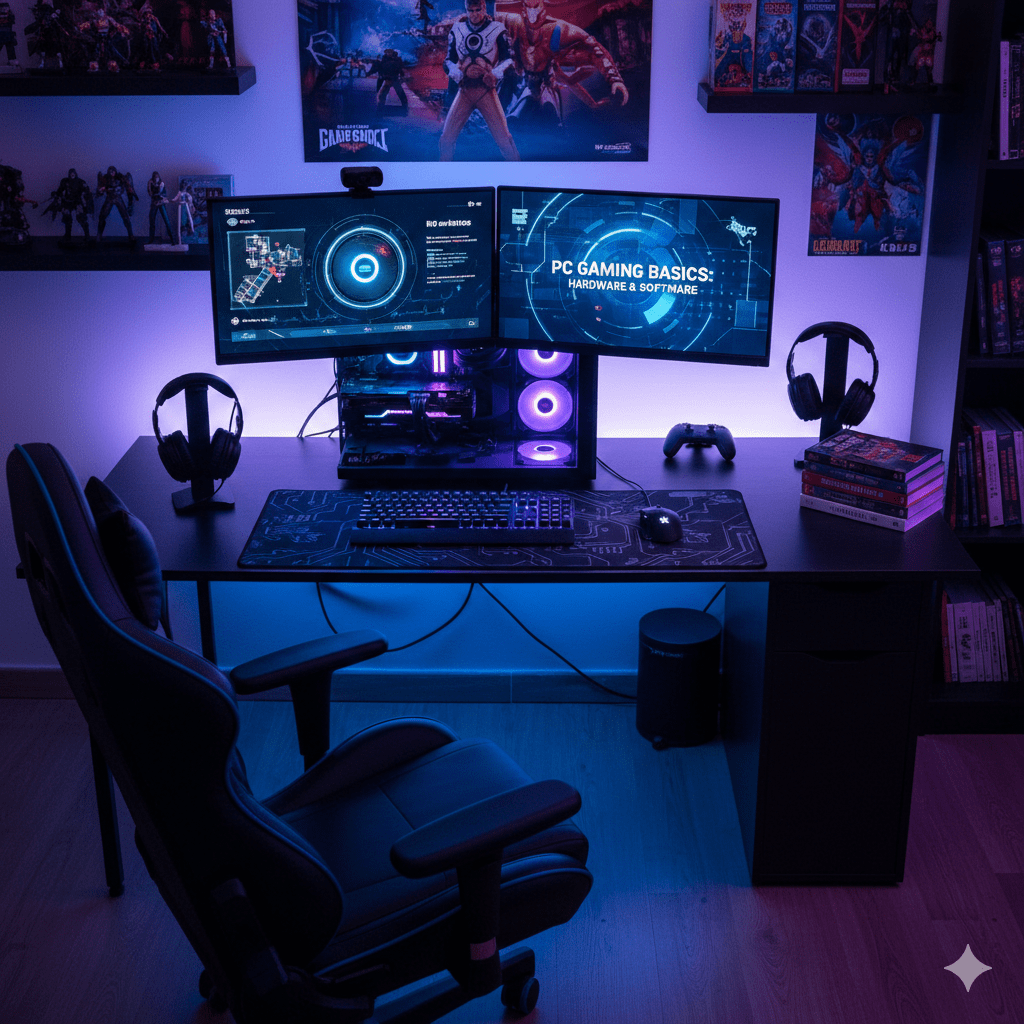
This guide focuses on settings you can change in minutes. It covers Windows settings, in-game display settings, graphics options, GPU checks, software habits, safety, and a small gadgets section for keyboard materials that shows up in searches.
Fast facts for beginners
Most beginners build habits around common setups. A few reference points help you pick sensible defaults.
- 60 FPS can feel smooth in many games on a 60Hz screen.
- 120–144 FPS can feel cleaner on 120–144Hz screens when your system holds steady.
- 1080p is still the most common target for many gamers, with 1440p growing fast.
- 16GB and 32GB RAM are common in modern gaming PCs, mainly due to multitasking and bigger modern titles.
These are reference points, not rules. pc gaming basics gets easier once you stop treating settings like a test you can fail.
Windows settings to set once
Refresh rate: the easiest “why does this feel off?” fix
A new monitor can run at 60Hz even when it supports 120Hz or 144Hz. That single mismatch can make a fast PC feel slow.
What to do
Open display settings and set the monitor refresh rate to its real value. Check it again after major updates or after plugging in a second screen.
What you should notice
Mouse movement looks smoother. Camera panning looks cleaner. Fast games feel less “draggy.”
Game Mode: a quick toggle worth testing
Windows Game Mode can reduce background interruptions for some systems. It can do nothing on other systems. Treat it like a switch you test for your own hardware.
What to do
Turn Game Mode on. Play one familiar game for 15 minutes. Turn it off and repeat. Keep the setting that feels better.
Windowed play settings: borderless players should check this
Many players use borderless windowed mode for fast alt-tab. Windows has settings that can improve how windowed games behave on some systems. If you play in borderless, that toggle can be worth a try.
Mouse pointer precision: decide on purpose
Windows has a mouse acceleration setting that can change how aim and camera control feel. Some players like it for desktop use. Many PC gamers turn it off for consistent mouse movement.
What to do
Turn pointer precision off for gaming, test for a day, then decide. Sensitivity changes will be needed after the switch.
Graphics preference on laptops: confirm the game uses the right GPU
Laptop gamers can run a game on the integrated GPU by accident. The game may still launch, then run poorly.
What to do
Set the game to “High performance” in Windows graphics settings. Confirm with an overlay (GPU usage should move when you change graphics settings).
In-game display settings you should change first
This is where pc gaming basics pays off fast. Display settings shape smoothness and input feel more than most “pretty” graphics sliders.
Fullscreen vs borderless: pick based on what you value
Fullscreen can give lower input delay in many setups. Borderless is convenient for alt-tab and multi-monitor.
A simple rule
- Competitive play: try fullscreen first.
- Casual play with frequent alt-tab: borderless can be fine.
Test both in the same game. Some titles behave differently.
FPS cap: steady beats spiky
Many beginners leave FPS uncapped. The result can be high peaks and ugly dips, plus extra heat and noise.
A simple cap method
Cap FPS slightly below your refresh rate:
- 60Hz screen: cap near 60
- 120Hz screen: cap near 120
- 144Hz screen: cap near 141–144 (game-dependent)
The point is consistency, not chasing a number.
V-Sync and VRR: stop tearing without ruining feel
Screen tearing happens when frames arrive out of sync with the monitor. V-Sync can remove tearing but can add delay in some setups. VRR (G-Sync / FreeSync / HDMI VRR) can remove tearing with less delay when it’s working well.
Quick guidance
- If your monitor supports VRR: turn VRR on and test with V-Sync off first.
- If tearing remains: test V-Sync on.
- If input feels heavy: test different combinations, then keep the one that feels clean.
Resolution and render scale: the biggest performance lever
If a game struggles, render scale is usually the fastest fix. Dropping from 100% to 90% can give a big boost with small visual change. Dropping too far can make a game look soft.
What to do first
Keep native resolution. Adjust render scale in small steps. Stop when the game feels stable.
Graphics settings that give real gains
A beginner-friendly graphics plan is simple: pick a preset, then adjust a small set of settings with high performance cost.
Start with a preset, then adjust four areas
Most games have presets like Low, Medium, High, Ultra. Start with Medium or High, then adjust from there. pc gaming basics works best when changes are measured.
Shadows
Shadows are expensive in many titles. Dropping shadows often boosts performance without wrecking the look.
Ambient occlusion and heavy lighting effects
These can add depth, yet they can cost a lot. Drop them one step when performance feels unstable.
Textures and VRAM
Textures can look great, yet they can cause stutter if VRAM runs out. If you see stutter while moving through new areas, textures are a common suspect.
Ray tracing
Ray tracing can look great. It can also crush performance. Treat it as a “luxury toggle,” not a default.
Upscaling settings: use them for smooth play
Many games offer upscaling modes that render internally at lower resolution, then rebuild the image. Upscaling can give big performance gains.
What to do
Turn on the game’s upscaling option if the GPU struggles at native resolution. Use a balanced mode first. Add a small sharpening value if the image looks soft.
Input settings that new PC players miss
Input feel is part of pc gaming basics. Many players change graphics first, then wonder why aiming feels odd.
Raw input: use it when it exists
Some games offer “raw input.” It reads the mouse more directly and can reduce odd behavior from system-level acceleration.
Sensitivity and DPI: pick a stable baseline
Beginners change sensitivity every match and never build muscle memory.
A stable approach
Pick one DPI (800 or 1600 are common). Pick one in-game sensitivity. Play for a week before changing.
Controller settings: dead zones and prompts
If you use a controller, set dead zones so drift does not ruin aim. Many games have separate settings for movement stick and aim stick.
Motion blur, film grain, depth of field
Some players love these. Many new PC players turn them off and feel instant clarity.
What to do
Turn them off once. Play a session. Turn them on later if you miss the look.
Field of view
A wider FOV can reduce motion discomfort for some players, yet it can reduce performance in some games. Adjust slowly and test.
Performance checks that tell you what to change next
A simple overlay can save hours. It turns “my game feels bad” into a clear direction.
What to watch
- GPU usage near 95–99% with low FPS: GPU limit
- CPU usage high on one or two cores with low GPU usage: CPU limit
- VRAM maxed: texture pressure
- RAM nearly full: background apps or heavy multitasking
Frame pacing: the hidden reason a game feels “rough”
Two games can show the same FPS and feel very different. Smooth play comes from consistent frame time, not only the FPS average.
Updates and stutter: what’s normal, what’s not
After large patches, some games rebuild shaders. That can cause short stutters in new areas for a while. It can settle after a few matches or a few minutes of play.
The “new updates” keyword shows up for a reason. Updates can reset settings, change performance, or introduce issues. Keep a small habit:
- Recheck fullscreen/borderless
- Recheck FPS cap
- Recheck render scale
- Recheck VRR/V-Sync
Quick fixes for common beginner problems
“My game is smooth in menus, bad in matches”
Check fullscreen vs borderless. Check FPS cap. Check background downloads.
“Tearing is driving me crazy”
Turn on VRR if the monitor supports it. Test V-Sync on if tearing stays.
“It feels delayed”
Test fullscreen. Reduce heavy post-processing. Recheck V-Sync settings.
“I upgraded my GPU and nothing changed”
Confirm the game uses the new GPU. Confirm the monitor is plugged into the GPU, not the motherboard video port.
“Random crashes”
Update GPU drivers. Verify game files in the launcher. Check storage free space. Check temps during play.
Cloud gaming services: where they fit in pc gaming basics
Cloud gaming is part of modern gaming platforms. It runs the game on remote hardware and streams video to your device. It can be useful for trying modern titles without a powerful system.
When cloud gaming works well
Stable internet, low latency, a solid router, and a quiet network.
When local play wins
Fast competitive games, heavy mods, offline play, or unstable internet.
Cloud gaming can be a good tool for beginners. It does not replace a local system for every gamer.
Safety and account habits for new PC players
The keyword list includes safety, software, law, local law, child development, liability protection, potential issues, inspections, property owners, building safety, owners, video slots. This section handles them in a practical way without turning the post into legal writing.
Safe software habits
New gamers get targeted by fake installers and shady “boost” tools. Keep your PC clean:
- Install games from trusted launchers
- Avoid random downloads sent in chat
- Use two-factor login where available
- Keep passwords unique
Child development and younger players
Gaming can support social interaction and shared hobbies. Families benefit from simple boundaries:
- age-appropriate titles
- chat restrictions for younger players
- time limits that protect sleep
Local law and responsibility: keep it short
Local law varies by region. Age ratings, online conduct rules, and gambling-related rules can differ. For families, follow age guidance. For shared gaming spaces, follow local rules around safety and supervision.
Shared spaces: property owners, inspections, building safety
Some setups are in rentals, cafés, clubs, or shared rooms. Basic building safety reduces risk:
- power strips rated for the load
- airflow around the PC
- cables routed safely
- no loose cords in walk paths
This supports liability protection in a practical sense: fewer trip hazards, fewer overheated devices, fewer damaged ports.
Video slots and gambling-style games
Some games include casino-style themes like video slots. Keep adult content separated from kid accounts. Follow age guidance and local rules.
Gadgets corner: keyboard plastics (PC, PBT, POM, PA, PPO)
Your added keywords include a long Chinese block about plastic materials. This section places that content where it makes sense for gamers: mechanical keyboards and keycap materials. It’s still part of pc gaming basics in the real world, since your input devices shape daily gameplay feel.
Keycap materials in plain words
Keycaps change sound, shine, texture, and durability. Common materials:
- PBT: often used for textured caps with good wear resistance
- PC (polycarbonate): often used for translucent keycaps for RGB
- POM: often used for smooth feel and a deeper sound
- PA: nylon family, used in some parts and blends
- PPO: used in blends, known for strong overall properties in some engineering uses
中文备注(按你的关键词原文放在同一处)
pa:产量突出, 只剩下钱的富裕家族, pc:性能、产量、外观突出, 高富帅, pom:性能高,但产量、外观不突出, 身高的穷小子, pbt:性能高、产量、外观都还行, ppo:性能超高、外观也不错,就是产量低
pc和ppo属于非结晶性(无定形)塑料,而pbt、pa、pom则属于结晶性塑料,非结晶性塑料和结晶性塑料,有些特性是相反的,比如流动性,结晶性塑料通常比非结晶性塑料好;收缩率,非结晶塑料比结晶性塑料小;透光性,非结晶塑料比结晶性塑料好等等。
pc的合成过程如下:工业上主要采用界面缩聚法,将一定配比的双酚a、氢氧化钠溶液、催化剂、分子量调节剂和溶剂(二氯甲烷或二氯乙烷)加入反应器中,于常温常压下通光气进行光气化和缩聚反应,最终取得聚碳酸酯。
pc具有优良的综合性能,尤其是它的冲击强度在热塑性树脂中非常突出的,在保持优良性能基础上其透光性(89
pc材料本身可达ul94, pc为什么具有一定的阻燃性?
loi, pc的极限氧指数(loi)可达21
六、pc的改性, pc合金, 加工流动性好,弹性模量高,耐应力开裂性好
pc和pom可按任意比例混合,既具有pc优良的力学性能和耐热性能,又是耐溶剂和耐应力开裂性显著。
pbt、pet, v-2级别,由于普通的聚合物,如聚乙烯等。但应用于电视机、电脑、打印机的机壳和组件、变压器线圈、汽车部件、建筑材料和其它具有高阻燃性要求的领域,pc的阻燃性能仍显不足,因此有必要对pc进行阻燃改性。
pc热变形温度为135-143℃,蠕变性小,尺寸稳定;具有良好的耐热性和耐低温性,在较宽的温度范围内具有稳定的力学性能,尺寸稳定性,电性能和阻燃性,可在-60~120℃下长期使用;无明显熔点,在220-230℃呈熔融状态;由于分子链刚性大,树脂熔体粘度大;吸水率小,收缩率小(一般为0.1
pc料对温度较敏感,其熔融粘度随温度的提高而明显降低,流动加快,对压力不敏感,要想提高其流动性,要采取升温的办法。pc料加工前要充分干燥(120℃左右,3~4小时),水分应控制在0.02
因此,pc料的成型加工要求较高。pc料收缩率低(0.5
pc的三大应用领域是玻璃装配业,汽车工业和电子、电器工业、其次还有工业机械零件、光盘、民装、计算机等办公室设备、医疗及保健,薄膜、休闲和防护器材等
-中规中矩,普通老百姓,哪里需要就去哪里,流动性、适应性强,极具性价比(熔体流动性好、快速结晶性,注塑成本低) ppo:性能超高、外观也不错,就是产量低
-典型的除了没钱,啥都有,跟pa相反,因此,ppo跟pa或者ps更富裕的家族合作才能实现他的实际价值(改善ppo的成型性)。
其中,随着酯基r的不同,可分为可分为脂肪族、芳香族、脂肪族-芳香族等多种类型。其中由于脂肪族和脂肪族-芳香族聚碳酸酯的机械性能较低,从而限制了其在工程塑料方面的应用,仅有芳香族聚碳酸酯获得了工业化生产,其化学结构式如下图。
v-2级阻燃性能。如果辅以少量的阻燃剂,pc就能达到较高级别的防火标准,同时,还不会损失其优良的光学以及力学性能,这是其他塑料产品根本做不到的。 pc材料本身可达ul94, v-2级阻燃,但仍无法满足特殊领域对阻燃性能的更高要求,如电子电气和汽车领域均要求pc阻燃等级达到v-0。 pc为什么具有一定的阻燃性?
What that means for gamers
PC keycaps tend to be more transparent, so RGB looks brighter. PBT keycaps tend to resist shine and feel textured longer. POM can feel smooth and sound different. The material choice changes feel during long gaming sessions, even when game settings stay the same.
This section is optional for your first day of pc gaming basics, yet it belongs on a gaming site under gadgets and keyboards.
Conclusion
pc gaming basics is less about memorizing settings and more about a small routine: set the monitor refresh rate correctly, pick fullscreen or borderless on purpose, cap FPS for steadier frame pacing, control tearing with VRR or V-Sync tests, then tune a few high-impact graphics options like render scale and shadows. Add a simple safety habit for software and accounts. Comfort upgrades like ergonomic furniture and tidy cable management can matter as much as a new graphics card during extended sessions.