“Smooth gameplay” is not only a high FPS number. Smooth means your frames arrive evenly, camera motion stays clean, and your controls feel direct. Many gamers get stuck in a loop: they push graphics up, see a nice screenshot, then a fight starts and the experience turns into stutter, tearing, loud fans, and input that feels late.
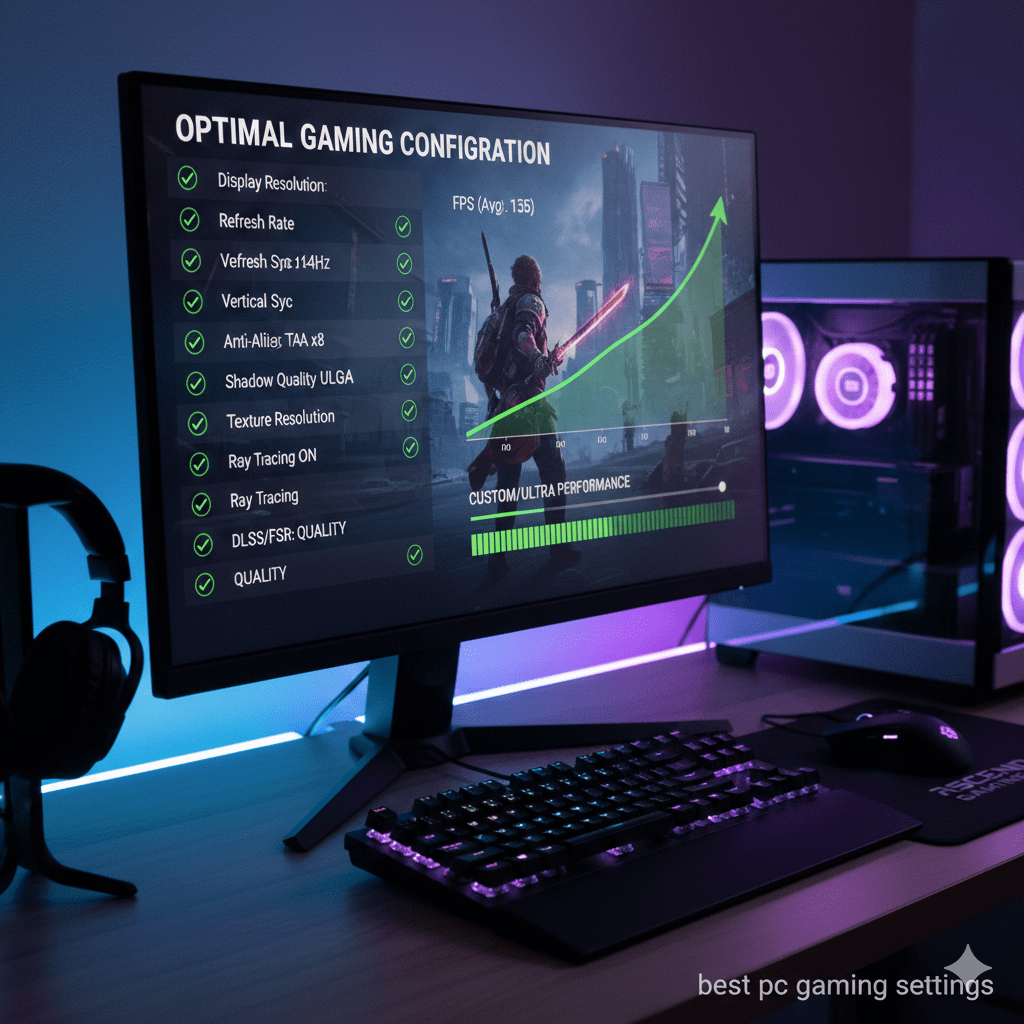
This guide is built around best pc gaming settings that work across modern games. It’s written for real life: different hardware, different monitors, different preferences, plus the weird stuff that happens after new updates.
Start with the biggest win: the display chain
Smoothness begins with what your eyes see and what your hands feel. Before touching shadows or textures, lock down the basics of the display path: refresh rate, frame pacing, and sync.
Refresh rate: check it before you change anything else
A high-refresh monitor can run at 60Hz if Windows defaults to it. That single mismatch makes every game feel “off,” even when the GPU is strong.
What to set
Set the monitor to its real refresh rate in Windows display settings. After that, open a game and confirm it also shows the same refresh rate in its video menu. Some games reset after patches, so it’s worth a quick check once per week.
What you should notice
Camera panning looks cleaner, mouse movement feels more direct, and fast motion looks less smeared. This is the easiest “best pc gaming settings” win.
Fullscreen, borderless, windowed: pick with purpose
Display mode affects input feel and stability. Many gamers pick borderless for convenience, then wonder why input feels slightly heavy in fast shooters.
Fullscreen
Fullscreen often feels tighter for competitive play. It can also reduce strange frame pacing in some titles.
Borderless windowed
Borderless is great for alt-tab, multi-monitor, and quick switches to Discord or a browser. It can be smooth too, as long as the rest of your setup is set correctly.
A simple way to decide
Pick one game you know well, stand in the same spot, do the same mouse movement, then switch modes and repeat. Keep the one that feels better to you, not the one people argue about online.
FPS cap: the quiet hero of smooth gameplay
Unlimited FPS looks good on a graph, yet it can create uneven frame pacing and sudden dips that your eyes feel as micro-stutter. A sensible cap often feels calmer and keeps temperatures down.
Where to cap
Match the cap to your refresh rate as a starting point. On many setups, capping slightly below refresh rate can feel smoother than running uncapped. If you play multiple genres, keep one cap per game genre. A story game can run differently than a competitive shooter.
Why this works
The GPU stops sprinting into heat and noise. The frame queue stays steadier. Your frame time becomes more even, and even frame time is what your brain reads as “smooth.”
Tearing, VRR, and V-Sync: stop the split screen effect
Tearing looks like the image is split into two parts during fast movement. VRR (G-Sync, FreeSync, HDMI VRR) helps the screen match the frame output. V-Sync locks the frame output to the display cycle, which removes tearing, yet can add a bit of input delay in some setups.
A practical order to test
Start with VRR on if your monitor supports it. Test in a fast camera movement scene. If tearing remains, test V-Sync on in-game. If input then feels heavy, test V-Sync off again and cap FPS instead. You are not chasing a perfect rule; you are chasing what feels right on your own gear.
Resolution and render scale: the fastest performance lever
Resolution is workload. Render scale is workload. If you want smoother gameplay and you do not want to drop every graphic slider, render scale is often the cleanest lever.
How to change it without wrecking image quality
Keep native resolution. Drop render scale in small steps and stop when motion becomes steady. If the image turns too soft, put it back up a notch and reduce one heavy setting like shadows instead.
Graphics settings that matter most for smooth gameplay
Many games ship with a wall of sliders. New players change everything and learn nothing. A better approach: pick a preset, then tune a short set of options that have the biggest impact.
Start with a preset, then tune from there
Pick Medium or High as a baseline in most titles. Ultra often adds small visual wins at a big performance cost. Start stable, then go prettier, not the other way around.
Shadows: lower them first when stutter hits
Shadows can be expensive, especially in big open areas. Lowering shadows can give a noticeable performance lift with a smaller visual loss than you’d expect.
What to try
Drop shadow quality one step. If the game has shadow distance, reduce it slightly. The scene will still look good, and motion will often smooth out.
Textures and VRAM: stutter often hides here
Textures can look amazing, yet they can cause hitching when VRAM is overloaded. This can feel like the game is “fine” until you turn quickly or enter a new area, then it hitches.
What to try
If you see stutter that appears during quick turns or new zones, lower texture quality one notch. It sounds painful, yet it can remove the hitching that ruins smooth gameplay.
Anti-aliasing and image clarity
Anti-aliasing makes edges smoother. Some AA methods cost a lot or make the image soft. If you use upscaling, aggressive AA can stack blur on top of blur.
What to try
Pick a modern AA option that fits your game. If the image looks smeared, reduce AA one step and add a small sharpening value, either in-game or in the upscaler.
Upscaling options: free frames when used correctly
Many games offer DLSS, FSR, or XeSS. These can improve smooth gameplay by reducing the internal render load.
What to try
Use a balanced mode first. If you still struggle, move toward performance mode. Watch fine text and foliage. If it becomes too noisy or soft, bump back up one level.
Post-processing effects: clean motion beats cinematic blur
Motion blur, film grain, chromatic effects, and heavy depth-of-field can look stylish in screenshots. They can also make movement look messy, especially at lower FPS.
What to try
Turn motion blur off first. Play a match or a mission. If the game looks too “sharp,” turn it back on at a low level. Your eyes, your choice.
Ray tracing: treat it as a luxury toggle
Ray tracing can add great lighting and reflections. It can also destroy FPS on many systems. Smooth gameplay matters more than a reflection you only notice in photo mode.
What to try
If you want ray tracing, start low. Turn on the lightest RT feature first, then test. If FPS drops hard or stutter appears, turn RT off and raise one non-RT setting for beauty instead.
Windows and system settings that keep games stable
Games run inside an operating system. Background tasks, power plans, overlays, and storage speed can decide whether your frame pacing stays clean.
Power and performance mode
Use a power mode that favors performance during gaming sessions. On laptops, plug in power for serious play. Battery modes can throttle CPU and GPU.
Background apps and overlays
Overlays can be helpful for FPS counters, yet too many overlays can cause odd stutter. Browsers with many tabs can also steal resources.
What to do
Close what you do not need before gaming. If you keep a browser open, keep it light. A busy browser with video plus html5 audio playback can fight your audio device and steal performance in the background.
Storage and updates
Games stream assets. Slow drives can cause hitching when the game loads a new zone. New updates can also reset graphics settings.
A quick routine after patches
Open the game settings menu and re-check: display mode, refresh rate, FPS cap, render scale, and upscaling. That short habit saves hours of confusion.
Input settings for a cleaner feel
Smooth gameplay is not only visuals. Input matters just as much.
Mouse acceleration and consistency
Many players want the mouse to move the same distance every time for the same hand movement. Windows pointer acceleration can change that feel.
What to do
Try turning pointer precision off, then set your in-game sensitivity again. Give it a few days, not five minutes. Your muscle memory takes time.
DPI and sensitivity: stop changing every match
Pick a stable DPI, then pick a stable in-game sensitivity. Keep it for a week. Your aim improves faster with consistency.
Controller settings: dead zones and drift
If you play with a controller, tune dead zones to remove stick drift. Too much dead zone can make small movements feel sluggish.
Audio settings that improve gameplay (and avoid weird conflicts)
Audio is part of best pc gaming settings. Footsteps, reload cues, and directionality can change outcomes in competitive play.
Output device and sample rate
Pick one main output device and keep it consistent. Switching between headset, speakers, and HDMI audio can cause crackle or delay in some systems.
Spatial audio and in-game mixes
Some games include headphone mixes, night mode mixes, or dynamic range settings. A “headphones” mix often helps clarity for footsteps and distance cues.
html5 audio, browser tabs, and device switching
A browser playing a video can use html5 audio and grab focus on your output device. That can lead to “game sound went quiet” moments.
What to do
Close audio-heavy tabs before competitive play. If you need a browser open, pause audio and keep one tab only. This is not about perfection; it’s about reducing random conflicts.
Settings profiles for smooth gameplay by resolution
Different resolutions change GPU load. The “best” settings at 1080p can be different from 1440p or 4K.
1080p: high FPS with clean motion
At 1080p, you can often aim for higher FPS. Focus on refresh rate, FPS cap, and sync. Shadows and post-processing are common performance traps.
1440p: balance clarity and performance
1440p looks sharper than 1080p and is a common upgrade. Upscaling can help maintain smooth gameplay. Keep textures at a level your VRAM can handle.
4K: pick stability over bragging rights
4K can look amazing, yet it is heavy. Treat render scale, upscaling, and shadow quality as your main tools. Keep ray tracing as optional.
Settings profiles by PC tier
“Best pc gaming settings” changes with hardware. A single universal setup does not exist.
Entry-level PCs
Aim for stability. Medium textures, lower shadows, modest AA, and a sensible FPS cap can feel far better than chasing Ultra visuals.
Mid-range PCs
Use high refresh rate if you have it. A mix of medium-high settings with upscaling is often a sweet spot for smooth gameplay.
High-end PCs
You can push higher visuals and still stay smooth. Watch temperatures and noise. An uncapped FPS can still cause uneven frame pacing, so caps still matter even on strong rigs.
Quick fixes when smooth gameplay falls apart
Micro-stutter during camera turns
Check textures and VRAM pressure first. Then check shadows. Then check render scale.
Big FPS drops in busy fights
Lower shadows and volumetric effects. Keep your FPS cap steady. Drop one heavy lighting option.
Input feels late
Test fullscreen. Test V-Sync off with an FPS cap. Reduce heavy post-processing. Check if overlays are stacking.
Screen tearing during fast movement
Use VRR if available. Add V-Sync if needed. If input feels worse, test a cap with VRR again.
Audio crackle or sudden silence
Confirm the output device, then pause browser audio. html5 audio in a browser can steal focus on some systems.
What “best” really means (and why searches get messy)
People type best pc gaming settings and expect one “top pick.” Search results can be chaotic, mixing unrelated topics and word pages. You might see words like wallet, coffee, beans, grocery, store, deals, price, and even coffee table mixed into suggestions. You might also see a strange sports angle with nfl, bengals, play, points, winner, runners-up, and even battle. Autocomplete can throw in odd spellings like betst, bedste, beste, or bäst.
This happens because the word “best” has its own search gravity. Some users are not even hunting gaming settings; they are hunting word meanings. They might type best, then drift into word, words, dictionary, meaning, entry, difference, translations, free translation, nearby words, similar words, related articles, new word, new words, word list please, or even etymology. Some even end up at sites they already know, like merriam-webster, merriam-webster.com dictionary, or references that talk about plural bests, auxiliary verb, adverb, verb, or a “definitive voice.” Then the rabbit hole goes global: dutch, german beste, danish bedst, swedish bäst, icelandic bestur, and even a nod to norse beztr. Sometimes a random line like “12th century” shows up in etymology discussions.
Then it gets stranger. A person searching might see film references like hollywood reporter, jafar panahi, secret agent, titanic see definitions, or even “entertainment news subscribe” and “full access.” Another person sees “html5 audio idioms” or “usage ‘buck” or “dog breeds birds.” None of that helps your FPS.
A final reason: many platforms build profiles and personalize results. You may see lines about “partners process data,” “and/or access information,” and “personalised content.” That affects what shows up in your browser. Your game settings still stay under your control, so treat the search noise as noise and come back to what matters: refresh rate, frame pacing, sync, render scale, shadows, textures, and audio.
Wrap-up
The best pc gaming settings are the ones that make your own games feel steady. Start with the display chain: refresh rate, display mode, FPS cap, then tear control. Move to graphics with a short set of high-impact options: render scale, shadows, textures, AA, and upscaling. Keep Windows clean during play, keep overlays minimal, and keep audio devices consistent. That routine turns random tweaking into repeatable smooth gameplay.