A 4k gaming pc build is a PC designed to push a lot of pixels without feeling “heavy” when you move the camera, turn fast, or load big scenes. At 3840 × 2160, 4K packs about 8.3 million pixels on screen at once, which is roughly four times the pixel count of 1080p.
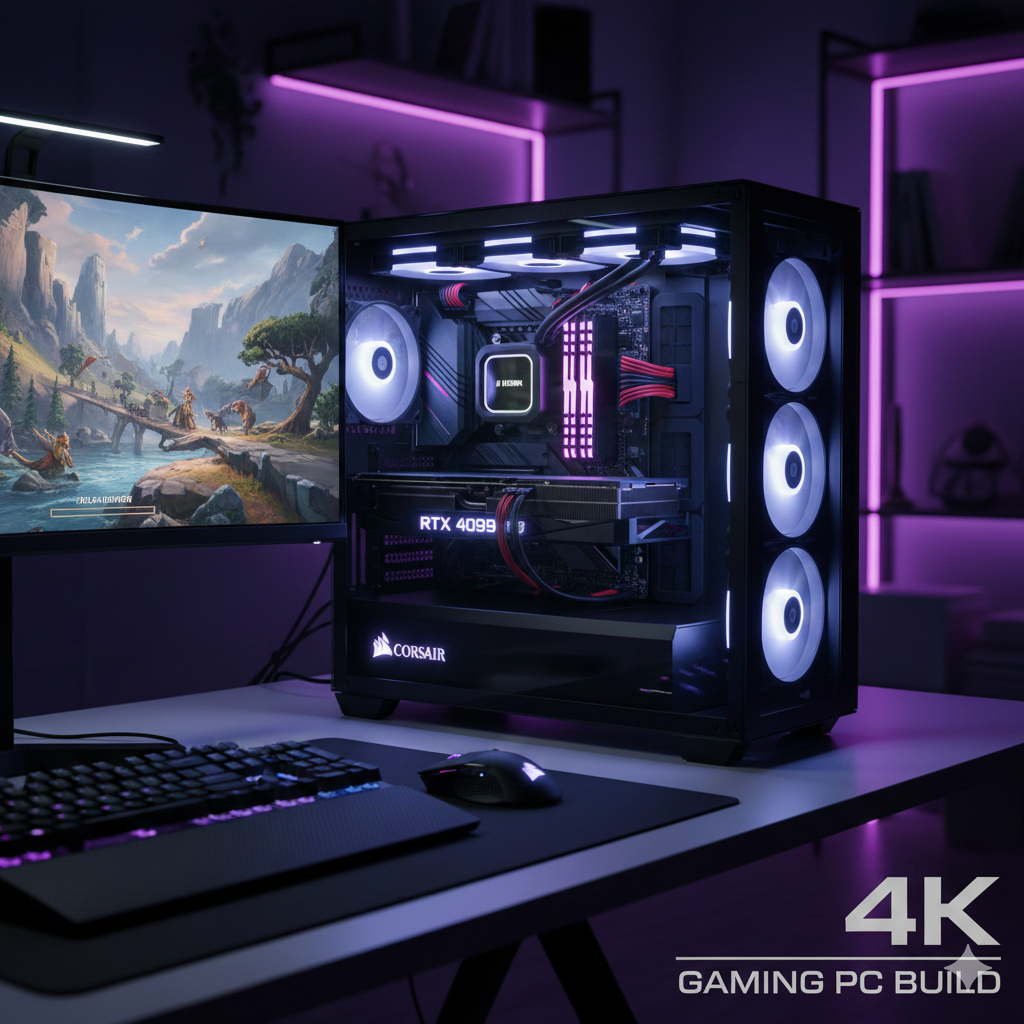
That pixel load changes everything:
- Your GPU becomes the main limit in most modern titles.
- Your VRAM matters more because textures and higher-resolution buffers eat memory fast.
- Your display connection matters (HDMI, DisplayPort), since 4K at high refresh needs bandwidth.
- Your frame rate target changes the entire parts list.
You may see “4K” used in cinema too. Some cinema workflows reference 4096 × 2160 (often tied to a cinema-oriented standard), while consumer TVs and monitors usually aim for 3840 × 2160. The difference is small in conversation, but it explains why “same resolution” sometimes means slightly different horizontal pixel count depending on the context.
Aspect ratio, pixel density, and why screen size changes the feel
Most 4K TVs and many 4K monitors are 16:9 aspect ratio. When you move from a smaller monitor to a large screen, your viewing distance and pixel density change how sharp the image looks. A 27-inch 4K monitor can look razor-sharp up close. A 55-inch television can look stunning too, but it usually sits farther away in a home setup.
That “sharpness feeling” is not just resolution. It’s a mix of:
- Screen resolution
- Size
- Viewing distance
- Panel quality and processing
- Color handling and HDR capability
Choose your 4K target before buying parts
A 4k gaming pc build can mean different things:
4K 60: “cinematic smooth”
If you mostly play story games, open-world titles, and visually rich releases, 4K 60 is a practical target. It pairs well with HDR, higher texture detail, and quiet acoustics.
4K 120: “fast and fluid”
If you play shooters, racers, sports games, or you simply love motion clarity, 4K 120 (or 4K high refresh) asks a lot more from the GPU, your display, and the cable standard.
HDR goals: SDR, HDR10, Dolby Vision
HDR is where a 4K build can feel like an upgrade even when the frame rate stays similar. HDR is tied to dynamic range (the spread between deep darks and bright highlights) and color reproduction. HDR standards are complex, and real-world results depend on the display’s capabilities.
You’ll hear terms like:
- Wide color gamut
- HDR formats (HDR10, Dolby Vision)
- Tone mapping
- Brightness peaks
Dolby Vision is commonly described as HDR using dynamic metadata to guide scene-by-scene presentation, when supported in the playback chain.
The core parts that define a 4K gaming PC build
GPU: the anchor of your 4k gaming pc build
At 4K, the GPU usually decides the experience more than any other part. Your goal is simple: pick a GPU that can hold your target frame rate at your preferred visual settings.
What to look for:
VRAM capacity and headroom
4K textures, high-res shadows, ray tracing buffers, and high-quality post-processing can push VRAM hard. When VRAM runs out, you can get stutter, texture pop-in, or sudden dips.
Upscaling and frame generation options
Many modern games offer upscaling. Even if you prefer native 4K, upscaling can be a smart tool when you want higher frame rate without trashing image detail. Think of it like a flexible knob: you can shift load from raw pixel rendering into smarter reconstruction.
Cooling design and power draw
High-end GPUs pull real power. That affects your PSU choice, case airflow, fan noise, and total heat inside the chassis.
CPU: still matters at 4K, just in a different way
At 4K, you often become GPU-limited, but the CPU still matters for:
- Stable frame pacing (less “micro hitch”)
- Open-world streaming and traversal
- Heavy simulation (strategy, sandbox, management games)
- Competitive titles where you chase high refresh
If you play simulation or management titles (think Football Manager or large-scale strategy), the CPU can shape how responsive the whole system feels, even if the GPU handles the graphics load.
RAM: capacity first, then speed
For a high-end 4k gaming pc build, 32GB is a comfortable place for modern usage patterns: big games, background apps, browsers, game launchers, capture tools, and voice chat.
Speed matters, but capacity and stability matter more. If you’re choosing between shaky “fast” memory and stable “good” memory, stability wins.
Storage: fast SSDs change the feel of big games
A fast SSD can reduce loading times and smooth out asset streaming in some modern engines.
A clean way to think about storage:
- One SSD for the operating system and core apps
- One SSD for games and big libraries
- Optional extra drive for media, captures, and backups
If you capture a lot of 4K clips or do frequent video uploads, storage space disappears faster than most people expect.
Motherboard: pick features you will use
Motherboards vary wildly in features, but you mainly care about:
- CPU support
- Enough M.2 slots for SSDs
- Solid power delivery for stable operation
- Ports you actually need (USB for devices, audio, networking)
A premium board is not automatically “better” for gaming. It’s “better” when it matches your devices and upgrade plans.
Power supply: the quiet foundation
High-end builds need a PSU with:
- Enough wattage headroom
- Strong quality and protections
- The right power connectors for your GPU generation
- Quiet fan curve under typical load
A PSU running near its limit can add noise, heat, and instability. Give your 4k gaming pc build room to breathe.
Cooling: air vs liquid is a choice, not a trophy
Both can work well.
Air cooling is simple and reliable with fewer points of failure. Liquid cooling can offer strong temps and a cleaner look, but it adds pump behavior, tubing, and radiator placement concerns.
In either case, the real win comes from:
- sensible airflow path
- good case ventilation
- fans that can move air without screaming
Case and airflow: where many 4K builds go wrong
A high-end GPU dumps a lot of heat. If your case has restricted intake, or your fans fight each other, the GPU boosts lower and your experience suffers.
A practical airflow layout:
- front intake fans bring cool air in
- top and rear fans exhaust warm air
- CPU cooler path doesn’t clash with GPU airflow
Keep dust filters clean. Heat and dust together turn “great parts” into “average results.”
Display choices for 4K gaming: monitor vs TV vs projector
A 4k gaming pc build is only as good as what you see.
4K monitors
Monitors often bring:
- higher pixel density at common desk sizes
- fast response and higher refresh options
- display-focused features like G-Sync/FreeSync modes
4K TVs
A TV can deliver a massive, immersive screen, strong HDR presentation, and that “living room cinema” vibe.
Points to watch:
- input lag in game mode
- 4K 120 support
- VRR support
- HDR behavior and tone mapping
- panel type differences across brands
You mentioned Sony, and it’s a good example of a major brand that often markets processing and image handling heavily. Brands vary a lot. Two TVs with “4K HDR” on the box can look very different.
Projectors and “digital cinema” feel
Projectors can look incredible for films and nature documentaries, but PC gaming needs:
- low latency
- good motion handling
- solid brightness and contrast in your room
- clean scaling at your desired refresh
Projectors connect to the same ecosystem of signals and formats: media, broadcast, HDR standards, and resolution handling from source to display.
Connection standards: HDMI, DisplayPort, refresh rate, and bandwidth
To run 4K at high refresh, the connection matters.
HDMI 2.1 and 4K high refresh
HDMI 2.1 is widely discussed because it supports higher data rates compared to older HDMI versions, with “up to 48Gbps” often cited in coverage.
That matters when you want:
- 4K at high refresh
- HDR
- VRR
- higher color depth
DisplayPort
DisplayPort options vary by generation and device support. Many PC monitors lean heavily on DisplayPort for high refresh at 4K.
Cables: a small thing that causes big headaches
A “high speed” cable claim is not always enough for high refresh HDR paths. For 4K 120, cable quality is where mystery issues show up: blank screens, dropouts, flicker, or signal negotiation weirdness.
HDR, color, and the settings that change image quality
HDR is not just a checkbox. It touches:
- color space and mapping
- brightness handling
- tone curves
- content pipeline from game to OS to display
A standard often referenced in HDR broadcast and modern HDR workflows is ITU-R BT.2100.
Wide color gamut and “white sub pixel”
Some TV panels use design choices that involve subpixel structures. You may hear “white sub pixel” in discussions of OLED and certain panel types. It’s part of how some displays aim for brightness and efficiency. The real takeaway is simple: panel tech can affect how color and brightness behave in HDR.
A clean 4K gaming PC build blueprint
Below is a model build shape you can adapt to your local market and current pricing. I’m not listing a single locked parts list because “best” changes with availability, region, and pricing swings.
Tier: “True 4K High-End”
Goal: stable 4K results with headroom for demanding games.
CPU (choose one path)
- High-end gaming-focused CPU with strong single-core performance
- Or a high-core CPU if you mix gaming with heavy creation workloads
GPU
- A top-tier GPU class aimed at 4K rendering and modern features
RAM
- 32GB as a comfortable standard
- 64GB if you do heavy creation, large mods, or frequent multitasking
Storage
- 1TB–2TB SSD for games
- extra SSD if you keep many AAA titles installed
PSU
- Quality PSU with headroom for GPU spikes
- Enough connectors for your GPU
Cooling and case
- Case with unrestricted airflow
- CPU cooler sized for your CPU class
- Fan layout that keeps GPU fed with cool air
Build steps that keep things stable
This is where many first-time builders lose time. The order matters because it reduces mistakes.
Step 1: prep and workspace
Work on a clean surface, ground yourself, and keep screws organized.
Step 2: CPU, RAM, SSD on the board
Install CPU, memory, and primary SSD on the motherboard before it goes in the case. This gives you space and visibility.
Step 3: mount motherboard, then connect power
Mount the board, connect the big power cables, and route cables cleanly so airflow stays open.
Step 4: GPU last
Install the GPU after the board and power wiring are stable. It gives you room to work and lowers the chance of bending headers or scraping parts.
Step 5: first boot, then tidy
Boot once before perfection-level cable routing. Confirm you get display output, BIOS recognition, and stable power behavior.
First setup after the build: settings that matter for 4K
Update drivers and firmware
A modern GPU driver often fixes stability issues and adds improvements for newer game releases.
Change screen resolution correctly
Set the correct resolution in the OS and in-game. “Change screen resolution” sounds obvious, yet many people run 4K monitors at lower settings by accident after first boot.
Use VRR when supported
VRR can smooth out frame pacing when you can’t hold a locked frame rate. It can reduce tearing and the “judder feeling” in uneven frame delivery.
Cap frame rate when it improves smoothness
A stable 90 can feel better than a noisy 110–140 swing, depending on the title and your display behavior.
HDR calibration
If you use HDR, calibrate in OS and in-game. Many games include HDR calibration screens that affect highlights, black levels, and overall tone mapping.
Game settings that give the best 4K results
Not every setting hits the GPU equally at 4K. A smart 4k gaming pc build mindset is to spend GPU time where your eyes benefit most.
High impact settings at 4K
- ray tracing features
- volumetric lighting
- heavy shadows
- high-end reflections
- ultra crowd density or simulation loads
“Free wins” that often look similar
Some settings barely change visuals at normal viewing distance but cost a lot of GPU time. These vary by engine, so test in your main games.
Upscaling as a tool, not a compromise
When a modern title is brutal at native 4K, upscaling can be the difference between “pretty but choppy” and “clean and smooth.”
4K outside games: streaming, media, broadcast, discs
A 4k gaming pc build often becomes a full media machine:
- streaming services like Prime Video
- local files and high-bitrate video
- Blu-ray discs via compatible drives and software setups
- downloads and playback across formats
Modern video delivery leans on high efficiency video codecs so streaming doesn’t melt bandwidth. That affects how content looks at certain bitrates and how stable playback feels on different devices.
Terms you might see in 4K video context:
- progressive scan
- format and container differences
- HDR flags and metadata
- audio pass-through and sync
If you connect to set-top boxes, TVs, and receivers, you’re moving through a chain of devices that each interpret the signal. That’s why 4K can look different across brands and models even at the same stated resolution.
Common problems in a 4K gaming PC build (and quick ways to fix them)
Sudden stutter in “heavy scenes”
Usually one of these:
- VRAM pressure
- background apps fighting for resources
- storage streaming hiccups
- thermal throttling
Flicker or black screen at 4K high refresh
Often:
- cable quality
- port mismatch (HDMI version limits)
- incorrect refresh rate or color depth combo
HDR looks washed out
Often:
- wrong HDR toggle state in OS
- incorrect color range settings
- display not in the correct mode
Picking between brands without getting stuck
The market is full of marketing. “Innovative stories” and hype headlines can pull you into spec rabbit holes. Use a simple filter:
- What resolution and refresh do you truly want day to day?
- Which games do you actually play?
- How sensitive are you to fan noise?
- Desk monitor, living room TV, or mixed setup?
A balanced 4k gaming pc build is not the one with the most expensive list. It’s the one that hits your screen and frame targets with stability and reasonable thermals.
Wrap-up
A great 4k gaming pc build starts with clarity: 4K 60 or 4K 120, monitor or television, HDR or SDR. Once you decide that, the parts selection becomes calmer. Put most of the budget into the GPU class that matches your target, support it with a stable CPU, 32GB RAM, fast SSD storage, and a PSU with room. Give the system airflow, use the right connection standard, and spend time on first setup so the experience stays smooth for years.