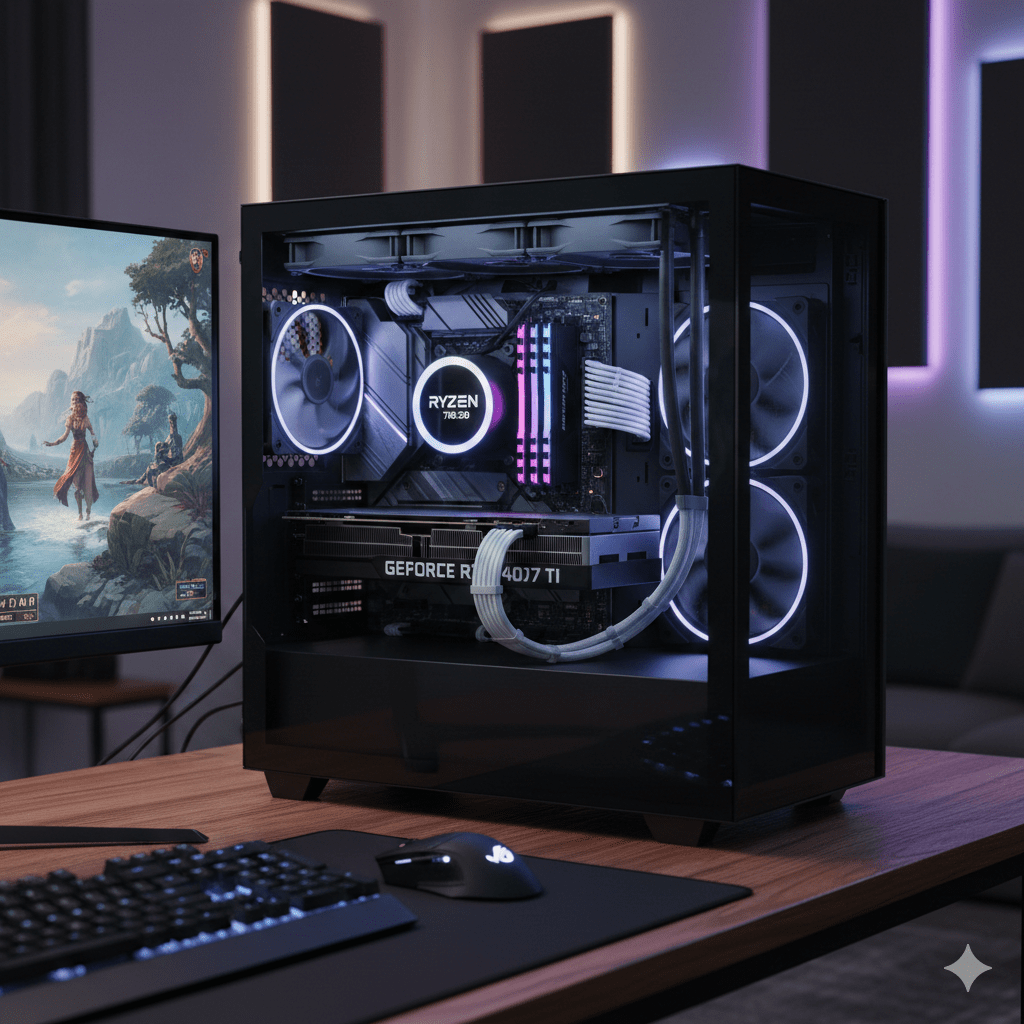
This guide is built around one goal: a 1440p gaming pc build that feels steady in real play. Not just a parts list, but a setup you can build, boot, and enjoy with fewer surprises.
What “smooth 1440p” means in real gameplay
“Smooth” is not one number. It’s the mix of frame rate and frame pacing.
Frame rate targets
For story games, a stable 60 FPS can feel great. For shooters and fast action, many players aim for 120 FPS or higher, mostly because it reduces blur and improves control feel. A 144Hz or 165Hz display is common in 1440p setups, so it makes sense to build around that class of monitor.
Frame pacing (the part people forget)
If the counter says 120 FPS but the game stutters every few seconds, it still feels bad. Your parts and your settings should reduce spikes. That means balanced choices, clean drivers, sensible in-game settings, and a Windows setup that does not fight your games.
Budget range for a mid-range 1440p build
“Mid-range” changes by country and pricing swings, yet most builds that feel right at 1440p land in a band where the GPU takes the largest slice. If the GPU is too weak, you end up turning settings down so far that you start asking why you bought a 1440p monitor.
A realistic mid-range plan looks like this:
Spend the most on the GPU.
Pick a CPU that keeps up without wasting money.
Use 32GB RAM for comfort in modern titles and multitasking.
Use an NVMe SSD that fits your library so you’re not juggling installs every weekend.
Buy a reliable PSU and a decent airflow case so the PC stays stable and quiet.
Parts that matter most for a 1440p gaming pc build
This section explains what each part does for 1440p, how to choose it, and where people waste money.
GPU: the main decision for 1440p
For 1440p, the GPU matters more than anything else. It decides your average FPS, how high you can set textures, and how much headroom you get for new games.
VRAM at 1440p
At 1440p, VRAM matters more than it did years ago. A card with more VRAM tends to handle higher texture quality and big open-world scenes with fewer hiccups. It does not guarantee higher FPS by itself, yet it can reduce nasty drops and texture pop-in.
Ray tracing expectations
Ray tracing can look great, yet it can cut frame rates hard. If you care about very high FPS, you’ll often keep ray tracing low or off and focus on clean raster performance. If visuals matter more, you can lean into ray tracing and use smart scaling options that most modern games include.
A practical GPU short list (choose your lane)
Pick a lane based on your goals:
Value 1440p lane: strong 1440p in many games with settings around medium-high.
Balanced 1440p lane: high settings in many titles, better long-term comfort.
Upper mid-range lane: more headroom for new releases, better for high refresh 1440p.
I’m not putting store links in this article, so think of these lanes as “performance classes” rather than a single forced model.
CPU: strong enough without overspending
At 1440p, the GPU usually sets the limit first, yet the CPU still matters for minimum FPS, busy open worlds, physics-heavy games, and competitive shooters.
A modern 6-core/12-thread CPU can be plenty for gaming. An 8-core can help if you do heavy multitasking, record gameplay, stream, or run lots of apps while gaming. The real goal is not “most cores,” it’s stable gaming performance with good minimum FPS.
RAM: capacity first, then speed
For current PC gaming, 32GB feels comfortable. It gives you breathing room for modern titles, voice chat, browser tabs, game launchers, and background apps.
Speed matters, yet it’s a second-order choice after capacity and platform match:
If you build on a DDR4 platform, get a decent DDR4 kit with stable timings.
If you build on a DDR5 platform, get a stable DDR5 kit that your motherboard supports well.
Storage: NVMe changes daily use
An NVMe SSD is a quality-of-life upgrade you feel every day. Games launch faster, patches install quicker, and the system feels snappy.
A good starting point:
1TB if your library is small and you uninstall often
2TB if you play many modern titles or keep multiple big games installed
If you edit video or keep lots of captures, 2TB gets comfortable fast.
Motherboard: buy features, not hype
You want a board that matches your CPU socket and has the features you’ll use:
Enough USB ports for your gear
Solid Wi-Fi and Bluetooth if you need it
Enough M.2 slots for SSD expansion
A reasonable VRM and cooling design so it runs stable
You do not need the most expensive board to build a great 1440p gaming pc build.
PSU: stability, noise, and upgrade room
A power supply is not the place to gamble. A good PSU helps stability, reduces random crashes, and keeps noise down.
Wattage depends on GPU class, but many mid-range 1440p builds land in a zone where a quality PSU with healthy headroom feels right. If you plan future upgrades, buy a little extra wattage now so you don’t replace it later.
Case and cooling: keep performance consistent
A hot GPU boosts lower. A hot CPU boosts lower. Heat makes fans loud. A case with real airflow and a decent fan layout can keep your system quiet and consistent.
For cooling:
Many CPUs are fine with a good air cooler.
If your CPU runs hot or you want very low noise, a stronger cooler or an AIO can help.
Cable routing matters too. Clean cable management improves airflow and makes upgrades less annoying.
A balanced mid-range 1440p gaming pc build (example template)
This is a template you can follow and adapt to your local pricing. Think “classes” rather than one locked SKU.
CPU
Pick a modern 6-core or 8-core from a current generation that fits your budget. Focus on solid gaming results rather than chasing the top-tier model.
GPU
Choose from the three lanes described earlier. If your goal is high refresh 1440p, lean into the balanced lane or upper mid-range lane.
Motherboard
Choose a board that supports your CPU, has two M.2 slots if possible, and fits your case size (ATX or mATX).
RAM
32GB as a 2-stick kit (dual channel). Match DDR4 or DDR5 to your platform.
SSD
1TB or 2TB NVMe, depending on library size.
PSU
A quality PSU with headroom for your GPU and future upgrades.
Case
An airflow-focused case with front intake and good clearance for your GPU.
Cooling
A decent tower air cooler is fine for most builds, paired with two or three case fans in a sensible layout.
Compatibility checks before you buy parts
A lot of build stress comes from simple mismatches. Check these items before you spend money.
CPU socket and motherboard match
Your CPU and motherboard must share the same socket and support the same generation. Check the board’s CPU support list on the manufacturer site before buying.
DDR4 vs DDR5
Motherboards support one RAM type. Buy the RAM that matches your board. Mixing this up is a common beginner mistake.
GPU clearance
Big GPUs can hit case length limits, front fans, or drive cages. Check GPU length support in the case specs.
PSU connectors
Some GPUs require more than one PCIe power connector. Confirm your PSU has the cables you need.
Cooler clearance
Large air coolers can conflict with tall RAM sticks or small cases. Check height limits.
Building steps that reduce mistakes
This is the order that keeps things simple and reduces rework.
Step 1: Prep your workspace
Use a clean table with good light. Keep screws in a small tray. Read your motherboard manual once before starting.
Step 2: Build the motherboard “core” first
Install the CPU, then RAM, then the NVMe SSD on the motherboard before it goes in the case. It’s easier while the board is flat.
Step 3: Install the cooler carefully
Follow the cooler manual. Tighten evenly. Do not overdo thermal paste.
Step 4: Put the motherboard in the case
Mount standoffs, then screw in the board. Make sure nothing is misaligned.
Step 5: Install PSU and route cables
Route the main power cables cleanly. Avoid blocking airflow paths.
Step 6: Install the GPU last
Seat it fully. Secure it with case screws. Connect power cables firmly.
First boot checks (BIOS and stability)
When the PC boots, go into BIOS and check:
RAM is detected correctly
CPU temperature at idle looks reasonable
Storage is visible
Fans spin and respond
Turn on the RAM profile (often called XMP or EXPO) so your RAM runs at its rated speed. Save and reboot.
Windows setup for a smooth 1440p gaming experience
A strong 1440p gaming pc build can still feel rough if Windows is messy.
Install drivers in the right order
Start with chipset drivers, then GPU drivers, then audio and network drivers if needed. Keep your GPU drivers current, especially for new releases.
Power and performance settings
Use a sensible power plan that does not throttle your CPU during gameplay. Keep background apps under control. If a browser, game launcher, or recording app eats resources, it can show up as stutter.
Storage housekeeping
Leave free space on your SSD. When an SSD is nearly full, performance can dip during installs and updates.
In-game graphics settings for smooth 1440p gameplay
You do not need “Ultra” to get a great picture. A few settings hit FPS hard with small visual gains.
Settings that often hit FPS the most
Shadows
Volumetrics and fog
Reflections
Ambient occlusion
Heavy anti-aliasing modes
Large view distance settings in open worlds
A strong move is to keep textures high (VRAM permitting), then tune shadows and volumetrics down a step.
Display settings that change feel
Set your monitor to the correct refresh rate in Windows display settings.
Use variable refresh features if your monitor supports them.
Keep motion blur off if you dislike the smeared look.
Fixing stutter, dips, and “something feels off”
Even good builds can stutter. Here’s the calm checklist that solves most issues.
Shader compilation stutter
Some games stutter during the first minutes while compiling shaders. Let it finish, then restart the game once.
Background tasks
Windows updates, cloud sync tools, and browser tabs can cause spikes. Close what you do not need during play.
Overlay conflicts
Overlays from launchers, recording apps, chat tools, and performance monitors can conflict. If stutter appears after installing a new overlay, test with overlays off.
Storage pressure
If your SSD has very low free space, it can cause hitching during asset streaming. Free up space.
Temps and throttling
If your GPU or CPU gets too hot, it can reduce clocks and cause unstable frame pacing. Improve airflow, clean dust filters, check fan curves, and reseat the cooler if temps look strange.
Useful software after your 1440p build: media players and game tools
Your keyword list includes media tools and esports utilities. They don’t belong inside the parts list, yet they do belong in the “what you install next” section, because many gamers use the same PC for clips, replays, and match analysis.
VLC Media Player for playback and formats
VLC media player (often called VLC video player) is widely used because it supports many video and audio formats and runs on many systems. You’ll see “VideoLAN” mentioned because it’s tied to the VideoLAN project, which operates as a non-profit organization in the software space and is known for its open-source licenses.
If your goal is simple: play game clips, match VODs, high-resolution videos, and odd formats without hunting extra codecs, VLC is a common pick.
VLC settings that can help performance
On some Windows PCs, playback can stutter if hardware decoding is off or misconfigured. In VLC, you can test hardware-accelerated decoding settings and see which option uses fewer system resources on your GPU/CPU combo.
You may have seen references to the VLC cone icon. That’s the familiar branding for VLC, and it shows up in many places across Windows and mobile devices.
Names like Roman Khramov may appear in searches tied to skins, icons, packs, or discussions around media tools. Treat anything that bundles software with “extras” as suspicious. Get your media player from a trusted source such as a reputable app store or the official publisher page, then avoid “safe downloader” sites that wrap installers.
PotPlayer and other media players
PotPlayer is another media player many users like for customization and fine control. People often compare it to VLC because both can handle a wide range of formats and playback features.
If you test multiple media players, focus on these points:
Smooth playback for your common file formats
Reliable subtitle handling
Low system load during 1440p and 4K video playback
Clean install without bundled add-ons
Some users mention a “converter solution” in the same breath as media players. Converters can be useful for compatibility problems, yet many converter apps are ad-heavy or bundled. If you need a converter, choose one that is well-known and transparent about its installer.
Riot Games tools and match tracking: Valorant profiles, peek maps, and utility tracking
A gaming PC is not just for playing; many gamers review matches and track progress.
You may see terms like:
Valorant profile
desktop app
peek maps
in-game utility tracking
agent role
These show up around third-party tracking tools and stat platforms. Some players use them for learning maps, planning utility lineups, tracking performance, or reviewing match history. You’ll see names like op.gg, u.gg, and valking.gg mentioned in this space, plus references to “league” and competitive profiles.
A simple rule keeps things clean: use tools that respect privacy, avoid asking for strange permissions, and do not push shady installers. If a tool claims “free download” yet tries to bundle extra programs, skip it.
A quick setup checklist for a new 1440p build (what to do on day one)
This keeps your first week smooth without turning setup into a project.
Display setup
Set resolution to 2560×1440, then set refresh rate properly. Check your monitor settings and Windows display settings.
Driver and update rhythm
Update GPU drivers, then pause. If everything runs well, don’t chase every tiny update daily. Update again when a new game needs it or when a driver release fixes a problem you actually have.
Storage and library planning
Create a simple structure for games, clips, and downloads so you’re not searching folders later. If you record a lot, keep clips off your main game install folder.
Upgrade paths for a mid-range 1440p gaming pc build
When you upgrade later, do it in the order that changes your experience the most.
GPU upgrade
For 1440p, the GPU is usually the biggest upgrade lever. A stronger GPU gives more FPS, higher settings, and better headroom in new releases.
Storage upgrade
If you started with 1TB and your library grows, adding a second NVMe drive is one of the easiest upgrades.
Cooling and noise upgrades
Better case fans and a better CPU cooler can reduce noise and stabilize boost behavior. It’s a comfort upgrade that you feel daily.
CPU upgrade
CPU upgrades matter if you play CPU-heavy games, chase very high FPS in competitive titles, or run heavy multitasking while gaming.
Final thoughts
A 1440p gaming pc build works best when it’s balanced. The GPU should carry the load, the CPU should keep minimum FPS steady, RAM should leave headroom, and your case and PSU should keep the system stable. Past that, your Windows setup and in-game settings decide whether the PC feels “fast” or “fussy.”
Build it clean, set it up calmly, then enjoy the games. That’s the whole point.